
Pre-migration analysis: know what will move before you migrate
A migration that fails at 80% on a path that is too long or an account that cannot be found costs a cutover evening. The analysis goes through the whole migration scope, read-only, and tells you before you start what will move, what will move with a caveat and what will not.
Short answer
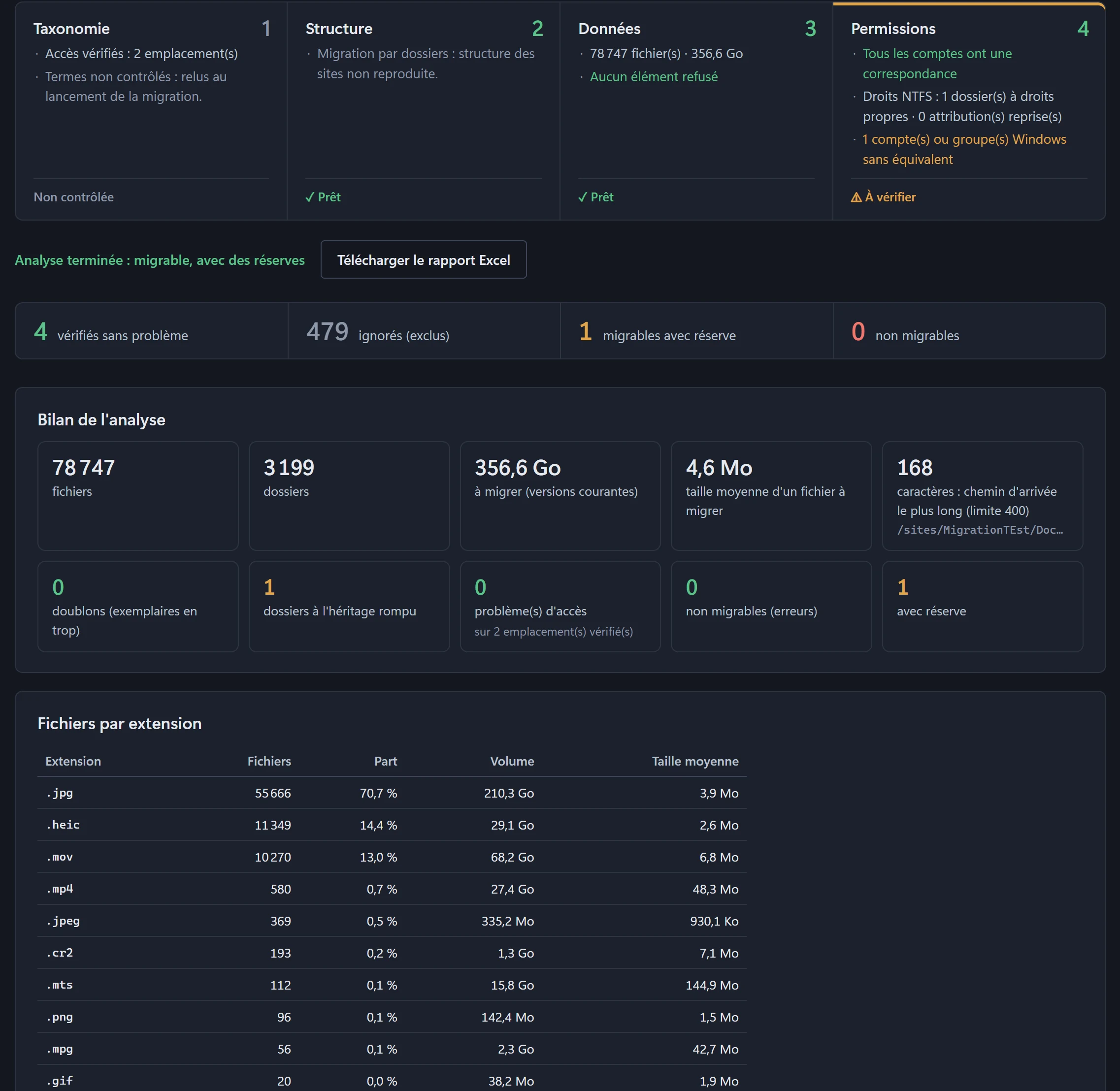
Tauri Migration’s pre-migration analysis reads the same sources as the migration, without writing anything to the target. It checks access, the lists carried over, file paths and names, unmatched accounts and lost permissions, counts files, volume and versions, breaks files down by age, and finds duplicates and folders with broken inheritance. Each phase gets a verdict: blocking, to check or ready.
What the analysis checks
The analysis runs on an action you have already prepared, with its source and target pairs and its options. It works out each destination address exactly as the transfer will.
| Step | Checks |
|---|---|
| Access | Every site, OneDrive, folder and file share is opened with the migration account. An account that is not site collection administrator is flagged on the source and blocking on the target. Target accounts in the identity mapping that are missing from Entra ID are listed. |
| Structure | Number of sites and subsites, lists and libraries carried over, lists left out (unsupported type, site pages). |
| Data | Destination paths over 400 characters, names SharePoint rejects, missing target list or library, incompatible types. For a file share: names to fix, paths too long, files over 250 GB, unreadable folders. |
| Permissions | Objects with unique permissions, accounts and groups with no match in the target tenant, with the number of assignments that would be lost and examples. Folders, lists and libraries with broken inheritance. Objects shared by link. File share NTFS permissions, carried over only if the option is ticked. |
One verdict per phase
At the end, each phase shows its findings in units that make sense, not in report lines:
- Blocking: some items cannot be migrated as they are.
- To check: some items will move, with a caveat you should know about.
- Ready: nothing to report.
The CSV report lists every finding: error for what will not be migrated, warning for what will be with a caveat, information for what has no impact.
The volume summary
- Files, folders and list items, volume of the current version and volume including history.
- Versions to migrate between SharePoint and OneDrive, with the average number of versions per file, within the limit set on the action.
- Average file size and breakdown by extension: count, share and volume of each file type.
Enough to estimate how long the migration will take, decide how many versions to keep and spot what weighs the most before you start.
File age
Files to migrate are broken down by last modified date: under 6 months, 6 months to 1 year, then year by year up to over 10 years. Each band shows the number of files, their share and their volume. It covers SharePoint and OneDrive libraries as well as file shares.
It is the basis for deciding what is worth migrating: archive rather than move files nobody has opened in five years, or split the cutover between live content and history. The Excel report adds the full list of files with their date, ready to filter, and a compressed inventory comes with the report for very large volumes.
Folders with broken inheritance
The analysis lists folders whose permissions differ from their parent’s, as well as lists and libraries with their own permissions, separate from the site. On a file share, it tells apart inheritance that was cut from explicit permissions added on top of inherited ones.
These folders are listed even when their permissions will not be carried over: each one says whether the Permissions phase will carry it over or whether, with the options chosen, it will inherit the destination’s permissions. You see before cutover which confidential folders could end up open to everyone. The list is in the summary, in the CSV report and on its own sheet of the Excel report.
Duplicates, checked by hash
The analysis finds files with the same name and size across the whole scope (sites, OneDrive and file shares together), then compares their QuickXorHash, the hash SharePoint and OneDrive already keep for every file. Nothing is downloaded from SharePoint; for a file share, the hash is computed on the workstation.
The summary gives the redundant volume and the list of groups, costliest first. From that list you can open each copy and, if you decide to, delete it at the source: it goes to the site or Windows recycle bin, and the last copy in a group cannot be deleted. Every deletion is logged to a CSV file.
Read-only
The analysis writes nothing to the target. Two exceptions, always on your initiative: access to OneDrive accounts, if you tick the option that grants it for the duration of the analysis and then removes it, and deleting a duplicate from the summary, after confirmation.
Next
Fix what blocks, run the analysis again, then start the migration from the same screen. The analysis also runs from the command line, so you can fit it into your scripts. The full list of what is carried over is on the Features page, and our migration checklist shows where the analysis fits in the project.
Frequently asked questions
Does the analysis change my sites?
How long does an analysis take?
How are duplicates checked?
Will a folder with restricted access stay protected?
Test it on your own tenant
The 14-day trial migrates 10% of every library, with versions, metadata and permissions. After you subscribe, an incremental run migrates the rest.